

A slow website can frustrate visitors, reduce engagement, and make it harder for people to find the information they need. Whether you run a personal blog, a WordPress website, an online store, or a business website, loading speed plays an important role in the overall user experience.
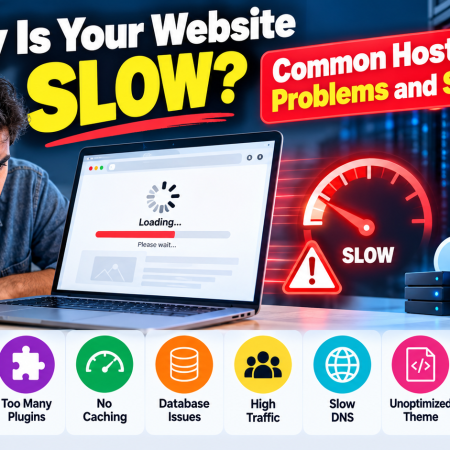
Many website owners assume that slow loading is always caused by poor web hosting. However, website performance depends on several factors, including server resources, image sizes, database queries, plugins, themes, caching, network conditions, and the way a website is built.
Sometimes, upgrading to a better hosting plan can solve the problem. In other cases, a few simple changes to images, scripts, or caching settings can improve performance without increasing your hosting expenses.
In this guide, we will explore the most common reasons websites load slowly, explain how hosting affects performance, and provide practical solutions that website owners can use to diagnose and fix speed problems.
Why Website Speed Matters
Website speed affects how quickly visitors can access your content and interact with your website. When a page takes too long to load, visitors may become frustrated and leave before they see the information they came for.
A faster website can make browsing more convenient, improve the experience on mobile devices, and help users complete tasks with fewer interruptions.
Speed can also influence search performance. Google uses page experience signals, including Core Web Vitals, as part of its broader approach to evaluating user experience. However, website speed alone does not guarantee higher rankings. Relevant content, usefulness, competition, and many other factors also matter.
For businesses, slow loading can create additional problems. Customers may have difficulty browsing products, completing checkout forms, or contacting support. For publishers, delays can make articles harder to read and advertisements more disruptive to the browsing experience.
Improving website speed is therefore not simply a technical exercise. It is part of maintaining a website that visitors can use comfortably.
1. Poor Web Hosting Performance
One of the first things to investigate when a website becomes slow is the performance of its hosting server.
Web hosting providers store website files and make them available to visitors. When someone opens a page, the server may need to process application code, retrieve database information, load files, and return the requested content.
If the hosting server is overloaded or lacks sufficient resources, these operations can take longer than expected.
Common signs of a hosting problem
You may be experiencing a hosting-related issue if:
- Your website is slow even when it contains very few images or scripts.
- Pages sometimes load quickly and sometimes take several seconds.
- Your WordPress dashboard is also slow.
- You receive server errors during periods of increased traffic.
- The hosting control panel reports resource limits being reached.
These symptoms do not prove that hosting is the cause, but they provide useful clues.
How to fix poor hosting performance
Start by checking the resource usage information provided by your hosting company. Look for CPU usage, memory consumption, disk activity, and any account limits that have been reached.
Contact your hosting provider if the server repeatedly experiences high load or if you suspect a server-side configuration problem.
If your website consistently requires more resources than your current plan provides, consider upgrading to a suitable hosting package.
Shared hosting can be sufficient for a small website, but a resource-intensive application or a website receiving substantial traffic may require a different configuration.
Before changing providers, test the website and collect performance measurements. This helps you determine whether hosting is actually the main problem.
2. Large and Unoptimized Images
Images often account for a significant portion of a webpage’s downloaded data. High-resolution photographs, large banners, and product images can make pages slow when they are much larger than necessary.
For example, a website might display a small thumbnail while downloading an original photograph several megabytes in size. The browser must download and process that unnecessary data before the image can be displayed.
How to optimize images
First, resize images to dimensions appropriate for their display area. A small article thumbnail generally does not need the same dimensions as a full-screen photograph.
Next, choose an appropriate image format. WebP and AVIF can provide efficient compression for many types of web images, while JPEG and PNG remain useful for particular requirements.
Compress images before uploading them to your website. Compare the resulting file with the original to ensure that the visual quality remains acceptable.
For images that appear below the initial visible area, consider lazy loading so the browser can defer downloading them until they are needed. Avoid lazy loading the main image that visitors see immediately, because this can delay the perceived loading of the page.
WordPress users can also use image optimization plugins, but they should review the plugin’s features, compatibility, and processing limits before installing it.
Practical tip: Keep an original copy of important images before applying compression or resizing. This allows you to create a different version later if necessary.
3. Too Many WordPress Plugins
WordPress plugins extend website functionality, including contact forms, SEO features, security controls, analytics, backups, and page builders.
However, poorly optimized plugins can increase page loading time. Some plugins load unnecessary scripts and styles, execute expensive database queries, or make external requests every time a visitor opens a page.
Installing more plugins does not automatically make a website slower. The actual impact depends on what each plugin does and how efficiently it is implemented.
How to identify problematic plugins
Review your installed plugins and identify those that are no longer needed.
Update active plugins and check their compatibility with your WordPress version. If you suspect a particular plugin is responsible for slow performance, test the website in a staging environment when possible.
You can temporarily disable plugins individually to identify performance changes. Avoid disabling essential security, payment, or business functions on a live website without a suitable testing plan.
For more detailed diagnosis, use a WordPress performance profiling tool or consult your hosting provider.
Recommended approach
Keep only the plugins that serve a clear purpose. Avoid installing several plugins that perform the same task, such as multiple caching plugins or multiple image optimization tools.
Before installing a new plugin, review its maintenance history, documentation, compatibility, and reputation.
A smaller collection of well-maintained plugins is often easier to troubleshoot and manage.
4. No Page Caching
Without effective caching, a dynamic website may need to generate the same page repeatedly for different visitors.
For example, WordPress may process PHP code, query its database, load theme components, and assemble the HTML whenever a visitor requests a page.
Page caching stores a previously generated version of a page so it can be served more quickly when the same content is requested again.
How caching improves performance
Caching can reduce repeated processing and database work. It is especially useful for blogs, informational websites, and other pages that do not change on every request.
Depending on your hosting environment, you may be able to use server-level caching, a compatible WordPress caching plugin, or a content delivery network.
Before enabling caching, check whether your hosting provider already includes a caching system. Running multiple caching solutions without proper configuration can cause conflicts or display outdated content.
Dynamic pages, shopping carts, user dashboards, and personalized content may need special cache rules.
After changing caching settings, test important pages and clear the cache when necessary.
5. An Overloaded Database
Websites built with content management systems often use databases to store posts, settings, user information, and other application data.
Over time, a database may accumulate unnecessary information. In WordPress, examples can include old post revisions, expired transients, unused metadata, and records left behind by plugins.
However, a large database is not necessarily a slow database. Poorly designed queries, missing indexes, inefficient plugins, and limited server resources can be more significant problems.
How to improve database performance
Start by creating a complete backup of your website files and database.
Use a reputable database optimization tool or ask your hosting provider to investigate slow queries. Remove unnecessary data only after confirming that it is safe to delete.
Avoid running unfamiliar SQL commands directly on a production database.
For more complex websites, a developer may need to examine database query performance, indexing, table structure, and application behavior.
Database optimization should address a demonstrated problem rather than simply deleting data to make the database smaller.
6. Too Much Traffic for Your Hosting Plan
A website that works well with a few visitors may become slow when many people access it simultaneously.
Each visitor can create additional work for the server. The amount of work depends on the website’s design, caching configuration, database activity, and the type of requests being made.
Traffic spikes may happen after publishing a popular article, sharing a video on social media, running an advertising campaign, or receiving search traffic.
How to handle traffic increases
Check your hosting dashboard for CPU, memory, bandwidth, and request limits. Review server logs to determine whether the slowdown coincides with a traffic increase.
Enable suitable page caching and use a content delivery network where appropriate.
If the website regularly exceeds its available resources, consider a hosting plan with more capacity.
For high-traffic websites, load testing can help estimate how the server behaves under different request volumes. Perform these tests responsibly and only on systems you are authorized to test.
Do not upgrade simply because a single article receives a short-lived traffic spike. First identify whether the issue is temporary or recurring.
7. Slow DNS Resolution
DNS, or Domain Name System, translates a domain name into the information needed to locate the relevant internet service.
When DNS resolution is slow, the browser may take longer to begin connecting to the website. This can make a page appear slow even before the web server begins delivering the content.
DNS performance depends on several factors, including the resolver used by the visitor, network conditions, DNS configuration, and the provider’s infrastructure.
How to investigate DNS problems
Use a reputable DNS testing tool to compare resolution from different locations. You can also inspect DNS response times using appropriate diagnostic utilities.
Check that your domain’s DNS records are correct and that there are no unnecessary redirects or misconfigured records.
If you recently changed nameservers or DNS records, allow time for the changes to propagate through the relevant systems.
Switching DNS providers may help in some circumstances, but it will not solve problems caused by slow PHP execution, oversized images, or overloaded hosting servers.
8. No Content Delivery Network
A content delivery network, commonly called a CDN, distributes cached website resources through servers located in different geographic regions.
When a visitor requests a cached resource, the CDN may be able to serve it from a location closer to the visitor instead of retrieving it from the origin server every time.
This can reduce the distance data travels and lower the load on the hosting server.
CDNs are particularly useful for websites with visitors spread across multiple countries, websites with many images, and sites that serve static files frequently.
How to use a CDN
Choose a CDN that supports your website and hosting configuration. Configure the domain and DNS settings according to the provider’s instructions.
Decide which resources should be cached, including suitable images, stylesheets, scripts, and other static files.
Test the website after setup. Check HTTPS, image delivery, redirects, and any functionality that depends on dynamic requests.
Remember that a CDN cannot fix every performance issue. If the origin server takes several seconds to generate a page, the CDN may still need to contact that server for uncached or dynamic content.
9. Unoptimized Themes and Website Builders
A website’s theme or page builder can affect the amount of code and resources loaded by each page.
Some designs include complex animations, multiple font files, large background images, and scripts that are unnecessary for the content being displayed.
A visually attractive website does not need to be overloaded with effects.
How to improve theme performance
Choose a maintained theme that meets your functional requirements without unnecessary complexity.
Remove unused page-builder elements, animations, and widgets. Avoid loading large libraries or external scripts on pages that do not need them.
If you use WordPress, test the website with a lightweight theme in a staging environment to compare performance. Check that the new theme supports the features and layouts your website requires.
A complete redesign is not always necessary. Sometimes, reducing the number of elements on a page provides a meaningful improvement.
10. Render-Blocking CSS and JavaScript
Browsers must process certain CSS and JavaScript resources before they can display or fully prepare a webpage.
When important resources take too long to download or execute, the browser may delay rendering or user interaction.
Third-party scripts can also introduce delays. Examples include analytics, advertising tags, social media embeds, chat widgets, and external font services.
How to reduce unnecessary scripts
Use a performance testing tool to identify resources that delay rendering.
Remove unused scripts and styles where possible. Minify files when appropriate, and use techniques such as deferred JavaScript loading when they are compatible with the website.
Consider loading nonessential third-party features only when they are needed.
Be careful when applying optimization settings. Combining, delaying, or removing scripts can break menus, forms, tracking, or other important functionality.
Test the website after each significant change rather than enabling every optimization option at once.
11. Outdated PHP or Software
Many WordPress websites use PHP, a server-side programming language. The PHP version and its configuration can influence application performance, compatibility, and security.
An outdated software environment may lack performance improvements or expose the website to security risks.
How to improve software performance safely
Check which PHP versions your hosting provider supports and identify the version currently used by your website.
Before upgrading, confirm that your WordPress version, theme, plugins, and custom code are compatible with the target version.
Create a backup and test the upgrade in a staging environment when possible.
Also keep WordPress core, themes, and plugins updated using a sensible maintenance process.
Do not switch PHP versions blindly on a live website. An incompatible plugin or custom application can cause errors after an upgrade.
12. Too Many External Requests
A website may depend on services hosted elsewhere, including video embeds, web fonts, analytics, advertising, social media widgets, and external APIs.
Each external request can introduce additional network activity. If an external service responds slowly, it may affect the page’s loading experience.
The impact depends on how the resource is loaded and whether it blocks rendering or user interaction.
How to reduce external dependencies
Review the browser’s network activity to identify external domains and resources.
Remove integrations that no longer serve a useful purpose. Use locally hosted assets when appropriate and permitted by their licenses.
Avoid embedding several large videos or interactive widgets on a single page when a simple link or thumbnail would serve the same purpose.
For advertising and analytics, follow the provider’s recommended installation and performance guidance. Do not remove essential compliance or measurement features without understanding the consequences.
13. High Server Response Time
Server response time is an important part of website performance. One commonly measured metric is Time to First Byte, or TTFB, which measures the time between a request and the arrival of the first byte of the response.
A high TTFB can result from slow application code, database delays, insufficient resources, network latency, redirects, or other factors.
It does not automatically mean that the hosting provider is at fault.
How to diagnose a high TTFB
Measure the website using a reliable performance tool and compare results from different pages and locations.
If static files respond quickly but dynamic WordPress pages are slow, investigate application processing, database queries, and caching.
If many unrelated pages and files are slow, investigate hosting resources, network conditions, and server configuration.
Share the measurements with your hosting provider if you need help determining whether the issue is related to the server.
14. Too Many Redirects
Redirects send visitors from one URL to another. They are useful when changing domain names, enforcing HTTPS, or maintaining older URLs.
However, unnecessary redirect chains can increase loading time because the browser may need to make several requests before reaching the final destination.
For example, a poorly configured website might redirect from an old domain to a new domain, then to HTTPS, and then to another URL format.
How to fix redirect problems
Check the final URL and inspect the redirect chain using a trusted diagnostic tool.
Choose one consistent version of your website, such as HTTPS with or without the www prefix, and configure redirects appropriately.
Review the hosting control panel, WordPress settings, CDN configuration, and any redirect plugins for conflicting rules.
Avoid deleting redirects without checking whether existing links or search engine listings depend on them.
15. Insufficient Memory or Resource Limits
Hosting accounts often have limits for memory, CPU usage, concurrent processes, and other resources.
A website may become slow or produce errors when an application exceeds those limits.
For example, a WordPress plugin that processes large images or imports substantial amounts of data may require more memory than an ordinary page request.
How to resolve resource limitations
Review your hosting provider’s error logs and resource usage reports.
Identify the application or operation consuming excessive resources before increasing limits.
If your hosting plan supports configuration changes, adjust the relevant settings within the provider’s documented limits.
If the website consistently needs more capacity, consider a more suitable plan rather than repeatedly increasing individual limits.
How to Test Your Website Speed
Before making changes, measure your website’s current performance. This gives you a baseline for evaluating whether your improvements are working.
The following tools can help.
Google PageSpeed Insights
Google PageSpeed Insights analyzes a webpage and provides performance information for mobile and desktop experiences where available.
It reports lab data and, when sufficient real-world data exists, field data from actual users. It also provides recommendations for addressing performance issues.
Website: https://pagespeed.web.dev/
GTmetrix
GTmetrix provides website performance reports, including loading timelines and information about page resources. Available testing options depend on the service’s current plans and features.
Website: https://gtmetrix.com/
WebPageTest
WebPageTest offers detailed website performance testing and diagnostic information. It can help developers investigate loading behavior under different test conditions.
Website: https://www.webpagetest.org/
What Should You Measure?
Focus on the following indicators.
Largest Contentful Paint (LCP): Measures when the largest visible content element is rendered. A good LCP is 2.5 seconds or less.
Interaction to Next Paint (INP): Measures responsiveness to user interactions. A good INP is 200 milliseconds or less.
Cumulative Layout Shift (CLS): Measures unexpected visual movement during loading. A good CLS score is 0.1 or less.
These are Google’s Core Web Vitals thresholds when measured at the 75th percentile of page visits, considered separately for mobile and desktop.
Do not judge your entire website from a single test run. Results can vary depending on network conditions, device performance, location, and whether the test uses cached resources.
A Step-by-Step Plan to Speed Up Your Website
If you are unsure where to begin, follow this practical sequence.
Step 1: Measure the Current Performance
Test your homepage and several important pages. Record the results and identify which resources or metrics appear problematic.
Step 2: Check Hosting Resources
Review CPU, memory, disk activity, and account limits. Ask your hosting provider to investigate repeated server errors or abnormal response times.
Step 3: Optimize Images
Resize oversized images, use efficient formats, and compress files while preserving acceptable quality.
Step 4: Review Plugins and Themes
Remove unnecessary functionality and investigate components that contribute excessive processing or network requests.
Step 5: Configure Caching
Use an appropriate page caching system and verify that dynamic pages are handled correctly.
Step 6: Examine Third-Party Resources
Review scripts, fonts, embedded content, and external APIs. Remove unnecessary requests and optimize the remaining ones.
Step 7: Retest and Compare
Run the same tests again under comparable conditions. Check whether the changes improved the relevant metrics without breaking website functionality.
This step-by-step method is more reliable than installing multiple optimization plugins and changing every setting simultaneously.
Frequently Asked Questions
Why is my website slow even with good hosting?
Good hosting cannot compensate for every performance problem. Large images, inefficient plugins, database queries, external scripts, and complex page designs can slow a website even when the server has sufficient resources.
Does changing hosting providers make a website faster?
It can, particularly when the current provider has insufficient resources or poor server performance. However, migrating a poorly optimized website to another provider may not solve problems caused by its code, images, or plugins.
Is free hosting responsible for slow websites?
Some free hosting plans impose strict resource limits or have fewer performance features than paid plans. However, free hosting is not automatically slow, and paid hosting does not automatically guarantee excellent performance. Compare actual resources, limitations, and measured results.
Can caching improve WordPress speed?
Yes. Properly configured caching can reduce repeated processing and database requests. The improvement depends on the website, caching method, and hosting environment.
How fast should a website load?
There is no single loading time that guarantees a good experience for every page and visitor. Aim for good Core Web Vitals, make important content available quickly, and ensure that visitors can interact with the website without unnecessary delays.
Does website speed affect AdSense approval?
Website speed alone does not guarantee approval or rejection. Publishers should focus on useful original content, clear navigation, policy compliance, and a functional website. Performance optimization helps provide a better experience for visitors.
Can too many ads make a website slow?
Advertising scripts can add network requests and processing work, depending on the implementation. Publishers should follow the relevant advertising provider’s policies and avoid layouts that interfere with content or make navigation difficult.
Conclusion
A slow website can result from several different problems, and web hosting is only one possible cause. Limited server resources, oversized images, inefficient plugins, missing caching, database issues, external scripts, and complicated themes can all contribute to poor performance.
The best way to improve website speed is to measure performance first, identify the actual cause, and make changes systematically. Begin with simple improvements such as image optimization and caching, then investigate hosting resources and application performance if the problem continues.
Regular testing, software updates, and careful plugin management can help keep a website reliable as its content and traffic grow.
A fast website does not need to be complicated or expensive. By understanding the causes of slow loading and applying the right solutions, website owners can create a more responsive experience for visitors and build a stronger foundation for long-term growth.
Additional Resources
- Google PageSpeed Insights: https://pagespeed.web.dev/
- Google web.dev performance guidance: https://web.dev/learn/performance/
- Google Search Central: https://developers.google.com/search/docs
- WordPress performance documentation: https://developer.wordpress.org/advanced-administration/performance/

Other Articles

Free Domain Offer by Porkbun: How to Get a Domain at a Low Cost




No Comment! Be the first one.