
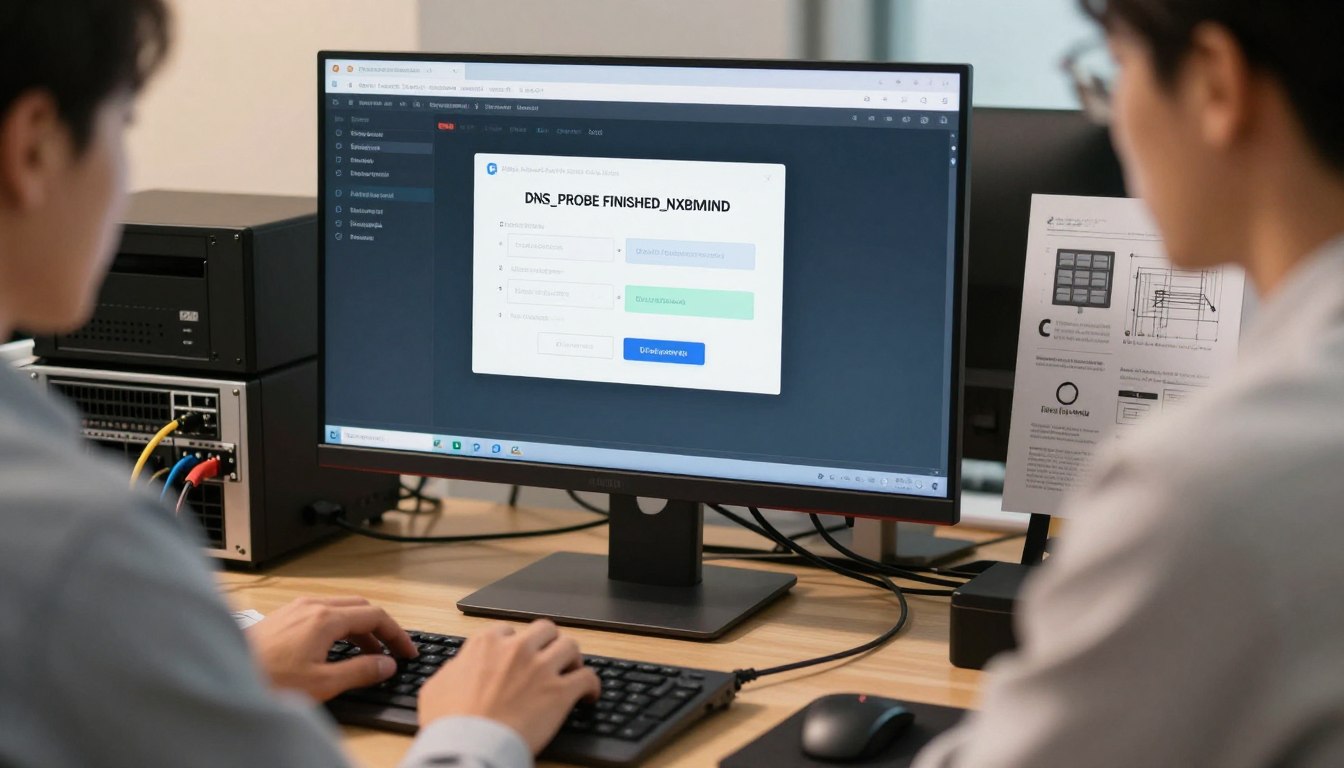


Ever tried to visit your favorite website and got a frustrating message? The DNS_PROBE_FINISHED_NXDOMAIN notification can really stop you in your tracks. It happens when your computer can’t turn a web address into an IP address.
Understanding the root cause is key to fixing your internet. Whether it’s your browser settings or network setup, there are quick fixes. These can get you back online fast.

This guide shows you How to Fix DNS_PROBE_FINISHED_NXDOMAIN Error easily. Just follow these steps to find and fix the problem. You won’t need any advanced tech skills.
Key Takeaways
- The error shows a domain name resolution failure.
- Browser cache issues often cause this alert.
- Flushing your DNS settings can fix connectivity problems right away.
- Checking your network adapter can solve ongoing connection issues.
- Updating your browser keeps it working with today’s web standards.
Understanding the DNS_PROBE_FINISHED_NXDOMAIN Error
The internet works like a huge digital phonebook. Sometimes, your browser can’t find the website you want. When you enter a URL, your computer tries to find the website’s IP address. If it can’t, you’ll see an error message and need to fix it.
What Does NXDOMAIN Mean?
NXDOMAIN means “Non-Existent Domain.” It shows that the DNS server can’t find the website’s IP address. Your browser is trying to reach a site that doesn’t exist or is unreachable.
It’s like trying to call a phone number that doesn’t exist. The server can’t find the site, so it sends this error code. This tells your browser that the site can’t be found.
Common Triggers for DNS Resolution Failures
A DNS resolution failure can happen for many reasons. One big reason is an incorrect DNS configuration on your device or router. If your settings are wrong, you can’t access websites.
Other common reasons include:
- Expired domain registrations: If the website owner forgot to renew their domain, it won’t work.
- Local network misconfigurations: Problems with your ISP or local cache can block access to websites.
- VPN or Firewall interference: Sometimes, security software blocks DNS requests, causing errors.
Finding the cause of these errors is the first step to fixing them. Knowing why they happen helps you find the right solution.
How to Fix “DNS_PROBE_FINISHED_NXDOMAIN” Error via Browser Settings
Fixing a DNS resolution failure often begins with checking your Chrome browser settings. Many connection errors aren’t due to your internet service provider. Instead, they’re often caused by temporary files or misconfigured software in your browser.
Clearing Browsing Data and Cache
Your browser stores website data to speed up loading times. But, this process can sometimes lead to corrupted files. These errors can cause persistent connection problems.
To clear your data, follow these steps:
- Open Chrome and click the three-dot menu in the top right corner.
- Select “Clear browsing data” from the “More tools” submenu.
- Choose “All time” as the time range and ensure “Cached images and files” is selected.
- Click “Clear data” to refresh your browser’s local storage.
Disabling Extensions That Interfere with DNS
Third-party extensions can sometimes conflict with your network requests. This can trigger a DNS resolution failure. If you’ve recently installed a new tool, it might be causing your connectivity problems.
You can test this by opening an Incognito window. This mode disables most extensions by default. If the website loads correctly in Incognito mode, disable your extensions one by one to find the problem.
Updating Google Chrome to the Latest Version
Keeping your Chrome browser settings up to date is crucial for security and compatibility. Older versions may struggle with modern web standards, leading to unexpected errors.
Chrome usually updates automatically. But, you can force a check by going to the “About Chrome” section in your settings menu. Keeping your software current is key for stable browsing and prevents network issues.
Clearing DNS Cache and Flushing Sockets
When your machine stores old IP addresses, it can cause frustrating connection errors. This is because your computer uses outdated info to find websites that may have changed. To solve this, you need to clear DNS cache to make your system look up the latest address.
Flushing DNS on Windows Systems
If you use a Windows PC, the process is easy. First, open the Command Prompt by searching for “cmd” in your start menu. Make sure to run it as an administrator for full permissions.
After opening the window, type “ipconfig /flushdns” and hit Enter. This command will flush DNS Windows settings. You’ll see a message saying the DNS Resolver Cache was cleared.
Clearing DNS Cache on macOS
Apple users can do a macOS DNS flush with the Terminal app. Open Terminal from Utilities or Spotlight search. You’ll need to enter a command based on your macOS version.
For most modern versions, type “sudo dscacheutil -flushcache; sudo killall -HUP mDNSResponder” and press Enter. You’ll be asked for your admin password. This clears all old records and gets fresh data from your provider.
Resetting Sockets in Chrome
Sometimes, the problem is in the browser, not the system. Chrome keeps its own network state, which can get corrupted. Resetting the browser’s socket pools can fix this.
Go to “chrome://net-internals/#dns” in your address bar and click “Clear host cache.” Then, go to the “Sockets” tab and select “Flush socket pools.” This resets internal network states and often fixes connection errors right away.
Renewing and Releasing IP Addresses
When simple fixes don’t work, it’s time to check your network settings. The problem might not be with the website but with how your computer talks to your router. Refreshing your connection can solve issues that keep causing errors.
Using Command Prompt for Network Refresh
The Command Prompt is great for managing your internet. It can make your computer drop its current IP address and ask for a new one from your router. This often fixes problems that lead to DNS_PROBE_FINISHED_NXDOMAIN errors.
To refresh, open the Command Prompt as an admin. Type ipconfig /release and press Enter, then ipconfig /renew. Don’t forget to clear DNS cache with ipconfig /flushdns to get fresh data.
“The strength of a network is only as good as the configuration that supports it.”
Troubleshooting Network Adapter Settings
If refreshing your IP doesn’t solve the problem, check your network adapter settings. Sometimes, the driver or settings get messed up, stopping a stable internet connection.
Here’s how to fix these settings:
- Open the Control Panel and go to Network and Sharing Center.
- Click “Change adapter settings” to see your active connections.
- Right-click your main connection and choose “Disable,” then wait a bit before enabling it again.
- Make sure your drivers are up to date from the manufacturer.
These steps help clear DNS cache and reset your device’s connection to the web. Having the right network adapter settings is key for smooth browsing and avoiding connection problems.
Modifying DNS Server Settings
Your internet service provider often assigns default DNS servers. These servers might not always work right. Taking manual control of your network settings can help fix this.
Switching to Google Public DNS
Google Public DNS is a reliable alternative. It offers faster and more stable connections than your ISP. To use it, just change your network adapter settings to 8.8.8.8 and 8.8.4.4.
Configuring Cloudflare DNS for Faster Resolution
For speed and privacy, try Cloudflare DNS. It’s known for quick responses and protecting your data. Set your DNS to 1.1.1.1 and 1.0.0.1 in your network settings.
Verifying DNS Settings on Router Hardware
Issues can also be at the router level, not just your computer. Log into your router to check DNS settings for all devices. Updating these settings directly on your router helps everyone on your network.
| DNS Provider | Primary Address | Secondary Address | Key Benefit |
|---|---|---|---|
| Google Public DNS | 8.8.8.8 | 8.8.4.4 | High Reliability |
| Cloudflare | 1.1.1.1 | 1.0.0.1 | Fastest Speed |
| OpenDNS | 208.67.222.222 | 208.67.220.220 | Content Filtering |
Resetting Chrome Flags and Browser Defaults
Sometimes, your Chrome browser settings can cause connection issues. Customizations can sometimes lead to problems that stop pages from loading. Going back to the browser’s original settings is often the quickest fix.

“A stable browser is the foundation of a seamless internet experience; when that foundation is compromised by experimental tweaks, a clean slate is the most reliable path to recovery.”
Restoring Chrome Settings to Original Defaults
If you think your current settings are the problem, you can easily go back to the default. This action removes startup pages, new tab pages, and pinned tabs. It also disables extensions temporarily.
To do this, go to the settings menu and pick “Reset and clean up”. Then, choose “Restore settings to their original defaults”. This will effectively remove any custom settings that might be causing DNS issues.
Disabling Experimental Features in Chrome Flags
Experimental features in Chrome are for testing and can sometimes cause problems. If you’ve turned these features on, you might need to Reset Chrome flags. This ensures they’re not blocking your network requests.
To see the list of active experiments, type “chrome://flags” in your address bar. Look for the “Reset all” button at the top to go back to the default settings.
| Feature Category | Status | Impact on Stability |
|---|---|---|
| Default Settings | Standard | High Stability |
| Experimental Flags | Modified | Potential Conflict |
| Browser Extensions | Active | Variable |
Checking Local Host Files for Misconfigurations
A hidden file on your computer might be causing your website access problems. This file is like a local map for domain names. It helps your computer skip standard DNS servers.
When you change this file, you tell your system where to find a website. But, if it has wrong information, it can stop you from getting to websites. Learning how to manage this file can help you control your local network.
Locating the Hosts File on Windows
The hosts file on Windows is hidden in a system folder. You can find it by going to C:\Windows\System32\drivers\etc\ in File Explorer. Remember, you need to use a text editor like Notepad with administrative privileges to save changes.
Editing the Hosts File on macOS and Linux
On macOS or Linux, the file is in the /etc/hosts directory. You’ll need to use the terminal with superuser permissions to access it. Using a command-line editor like nano or vi is safe for editing.
Identifying Blocked Domains and Redirects
When you look at the file, search for lines with 127.0.0.1 and a domain name. These lines block access to certain sites by sending them to your local machine. If you see a domain you want to visit, delete that line or add a ‘#’ symbol to comment it out.
| Operating System | File Path | Required Permission |
|---|---|---|
| Windows | C:\Windows\System32\drivers\etc\hosts | Administrator |
| macOS | /etc/hosts | Root/Sudo |
| Linux | /etc/hosts | Root/Sudo |
Making the right changes to the hosts file ensures your browser goes to the right server. Always make a backup of the original file before making any changes.
Disabling VPNs and Antivirus Software
At times, the software meant to protect your computer can block your internet. These tools are key for digital safety but can sometimes mistake good web requests for threats. This mistake often leads to frustrating errors that stop you from visiting your favorite sites.

Testing Connectivity Without VPN Interference
Virtual Private Networks are great for privacy but can cause VPN connection issues that mess with DNS resolution. If you keep getting an error, try turning off your VPN. Then, try to reload the webpage in your browser.
If the site loads fine without the VPN, the problem is with your VPN setup or server. You might need to pick a different server or update your VPN client to fix the issue.
Temporarily Disabling Firewall and Antivirus Protection
An antivirus firewall conflict can block traffic before it even gets to your network adapter. To see if your security suite is the problem, turn off its real-time protection. Remember to turn it back on right after your test to stay safe.
If you can access the website without your security software, you’ve found the problem. You might need to add an exception for your browser or check the software logs to find out which rule is blocking the connection.
Checking for Proxy Server Conflicts
Wrong network settings can cause proxy server conflicts that send your traffic through non-existent or blocked gateways. Many users don’t know they have a proxy enabled, often set up by a previous app or network admin. Check your system’s network settings to make sure the “Use a proxy server” option is turned off.
| Security Tool | Common Impact | Diagnostic Action |
|---|---|---|
| VPN Client | DNS Routing Errors | Disconnect and Test |
| Antivirus | Traffic Filtering | Disable Real-time Scan |
| Firewall | Port Blocking | Reset Default Rules |
| Proxy Server | Incorrect Routing | Disable in Settings |
Launching a New Website with Freedomainnow
Starting your online presence begins with the right domain setup. Proper setup prevents technical errors and keeps your site open to visitors worldwide.
Why Domain Configuration Matters for Site Stability
How you set up your domain affects your site’s reliability. Misconfigurations can cause frustrating errors that lose visitors before they see your site.
“A stable website is the cornerstone of a successful digital strategy, and it begins with a solid technical setup.”
Focus on a clean setup for a stable environment that supports growth. This approach reduces downtime and keeps your site running smoothly.
Leveraging Free Domain and Hosting Services
Platforms like Freedomainnow are great for starting. They offer free domain registration and free website hosting, making setup easy.
Using an integrated service ensures your domain and hosting work together. This avoids common conflicts from different providers.
Utilizing Free Website Builders and SSL Certificates
Modern website builder tools let you create a professional site easily. These tools are user-friendly, helping you publish your content quickly.
Security is key for any new site. Always install an SSL certificate to protect data and boost search rankings. Most providers include these certificates now.
Ensuring Proper DNS Propagation for New Domains
After setting up your domain, wait for changes to spread across the internet. This process, called propagation, can take up to 48 hours.
If you face issues, remember that DNS propagation troubleshooting takes time. Use online tools to check your records if you’re worried about delays.
- Verify your nameserver settings in your account dashboard.
- Clear your local browser cache to see the most recent updates.
- Wait for the global network to sync before making further changes.
Conclusion
Fixing the DNS_PROBE_FINISHED_NXDOMAIN error is easy if you know the right steps. Start by checking your browser and network settings. This will help you get back online fast.
Having a reliable internet connection is key to your digital life. It makes sure your favorite sites load smoothly. Now, you can fix common problems on your own.
If you still have issues, check your network setup. Keeping your browser and router settings up to date helps avoid problems. This skill keeps your online experience smooth and efficient.
Help others by sharing how you fixed your DNS error. If all else fails, contact your internet service provider. Your efforts keep your digital space running well.
FAQ
What does the NXDOMAIN error message actually mean?
The NXDOMAIN error means “Non-Existent Domain.” It happens when your computer can’t find the right IP address for a website. This could be because the domain name is wrong, expired, or there’s a problem with the connection to the DNS server.
How can I quickly resolve the DNS_PROBE_FINISHED_NXDOMAIN error in Google Chrome?
Clearing your browser’s cache and data can fix many issues. Also, check if any Chrome extensions are causing problems. Make sure Chrome is updated and reset any experimental flags to their defaults.
What is the process for flushing the DNS cache on Windows and macOS?
On Windows, open Command Prompt as an admin and type ipconfig /flushdns. For macOS, use Terminal and enter a command based on your OS version. This clears old data and gets fresh info from your ISP.
Can changing my DNS server settings improve my internet connection?
Yes, using different DNS servers can help. Try Google Public DNS (8.8.8.8) or Cloudflare DNS (1.1.1.1). They might be faster and more reliable. You can change these settings on your router to help all devices.
How do I release and renew my IP address to fix network conflicts?
Use Command Prompt to refresh your connection. Type ipconfig /release and then ipconfig /renew. This gets a new IP address from your router, solving TCP/IP errors.
Could my computer’s hosts file be blocking access to certain websites?
Yes, it’s possible. The hosts file can override DNS settings. If it’s set wrong, you might see an NXDOMAIN error. Check and edit the file to avoid blocking good websites.
Why would my VPN or Antivirus software cause a DNS resolution failure?
Security tools might block safe web traffic, thinking it’s a threat. Firewalls and antivirus can also cause proxy server conflicts. Try disabling these to see if it fixes the issue, then adjust your settings.
Why is my new site on Freedomainnow showing a DNS error after setup?
New sites on Freedomainnow need time for DNS to update. Even with free hosting and SSL, it can take up to 48 hours. The website builder ensures it’s set up right, but you need to wait for the DNS to catch up.
Leave a Reply